

Login Instructions
Instructions for Logging In
This guide will walk you through the complete process of logging into your BFSLA account using our secure magic link system.
Step 1. Access the Login Page
Click on “Membership Login.” There is no need to register. Simply enter your email address and click “Send Magic Link.” You will then be able to log in using the magic link.
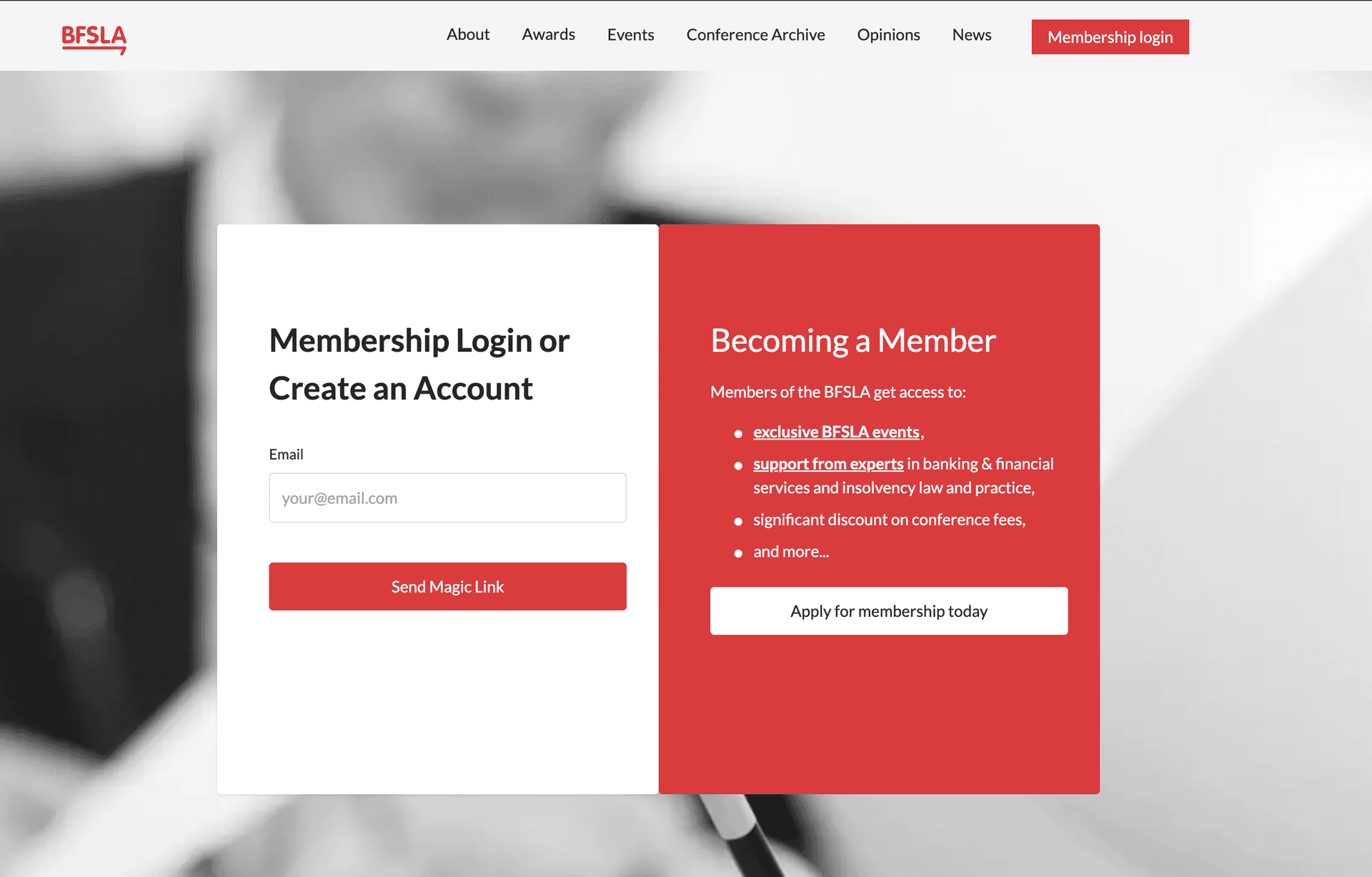
Figure 1: Login page with magic link request form
Step 2. Confirm the Magic Link Request
After clicking “Send Magic Link,” you will receive a notification showing whether the link was sent successfully. If successful, a green prompt will appear.
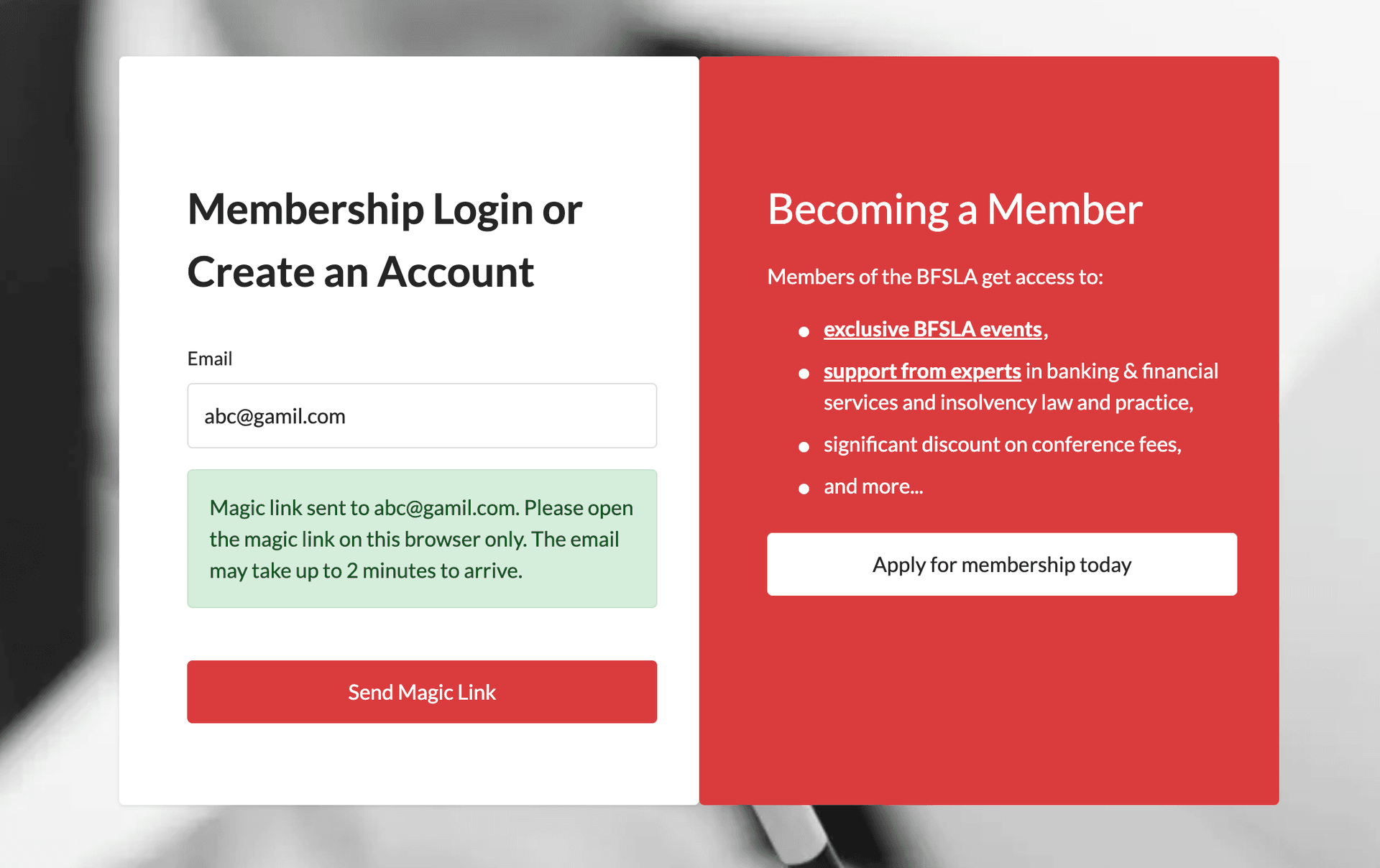
Figure 2: Magic link sent confirmation
If you see “Register as a Member First” message, please confirm that your email address is entered correctly. If you have not registered yet, please click the “Register as a Member” button to become a member. For registration guidance, please visit Instruction for Registration.
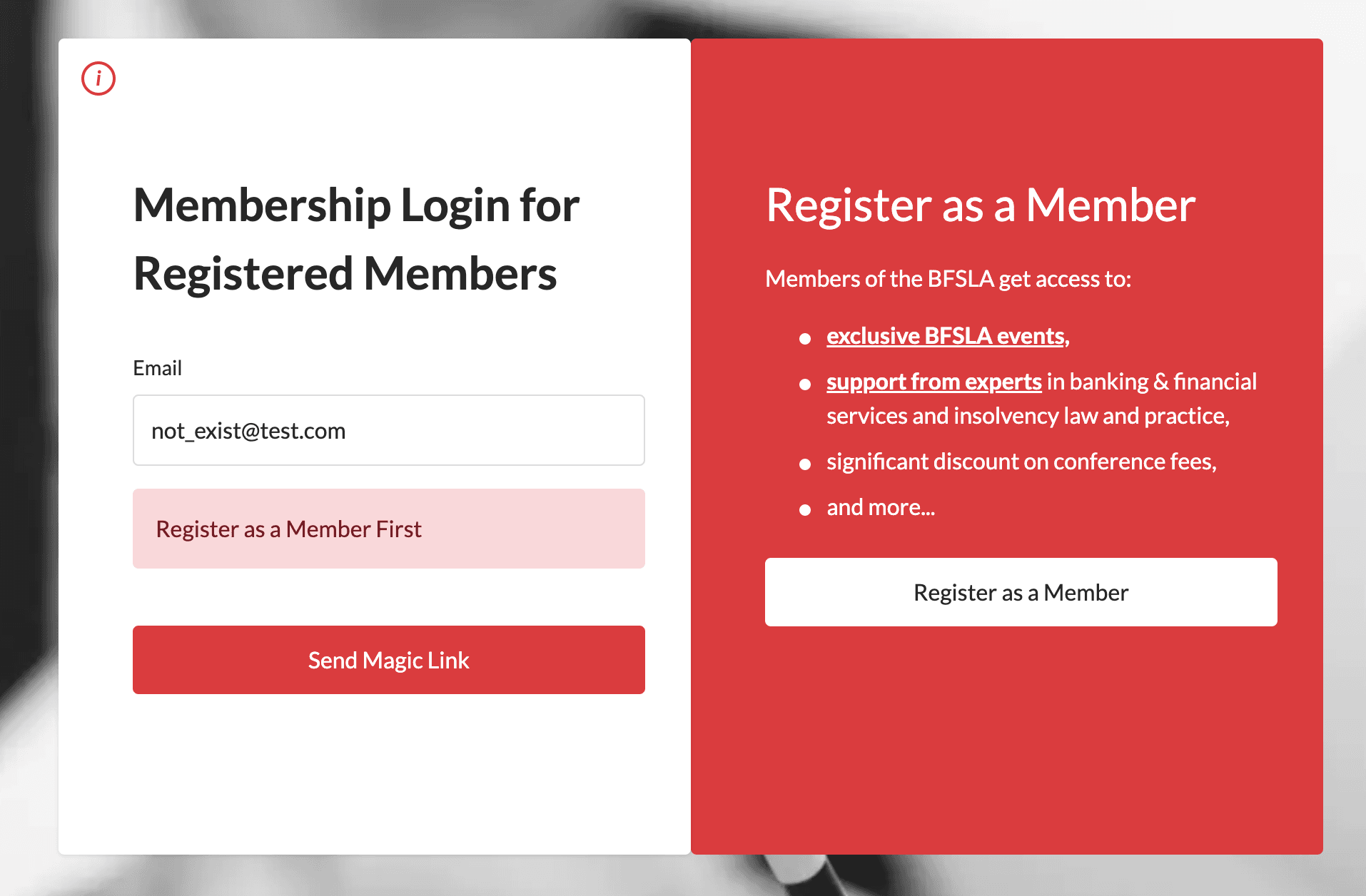
Figure 3: Register as Member First error message
Step 3. Check Your Email
You should receive the email within about two minutes. If you do not see it after five minutes, please check your spam or junk folder in case it was filtered by your email provider.
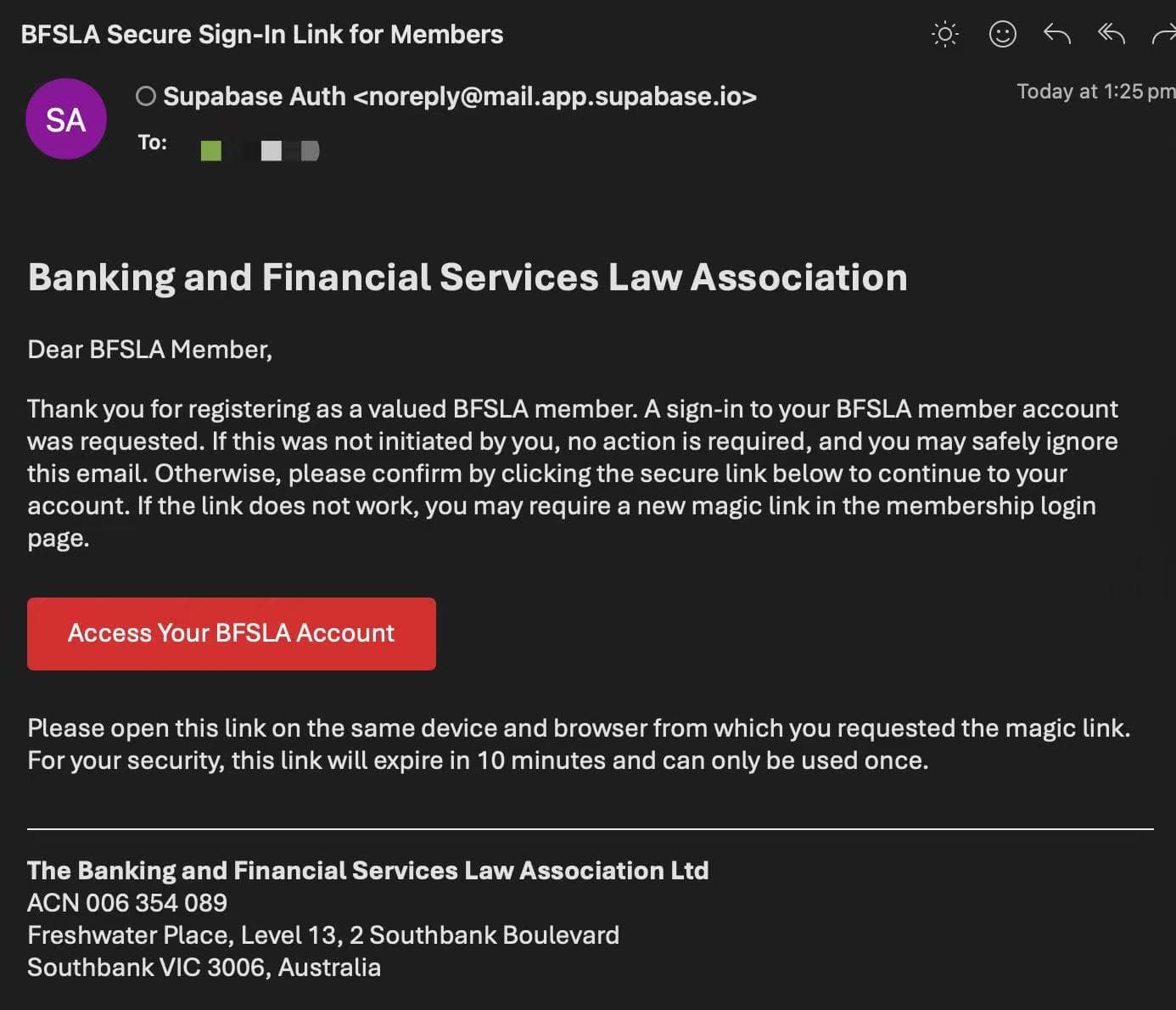
Figure 4: Magic link email in inbox
Step 4. Open the Magic Link
Click the link in the email, or copy and paste it into your browser. Important: Please use the same browser on the same device that you used to request the magic link, otherwise it will not work. The link is valid for 10 minutes and can only be used once.
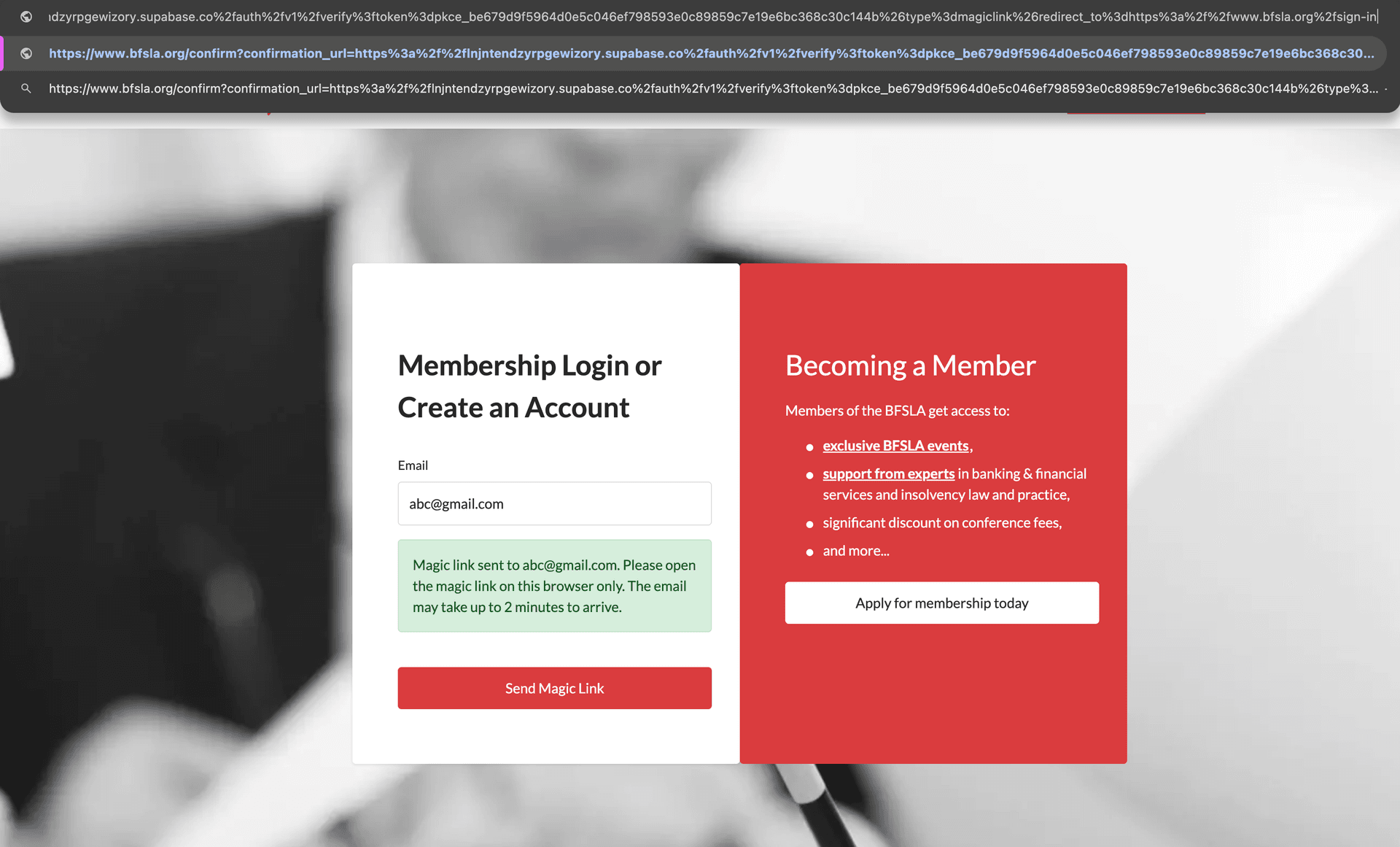
Figure 5: Magic link in browser
Step 5. Confirm Sign-in
Click the “Yes, Sign In” button to complete your login. If you do not wish to proceed, click “Cancel.”
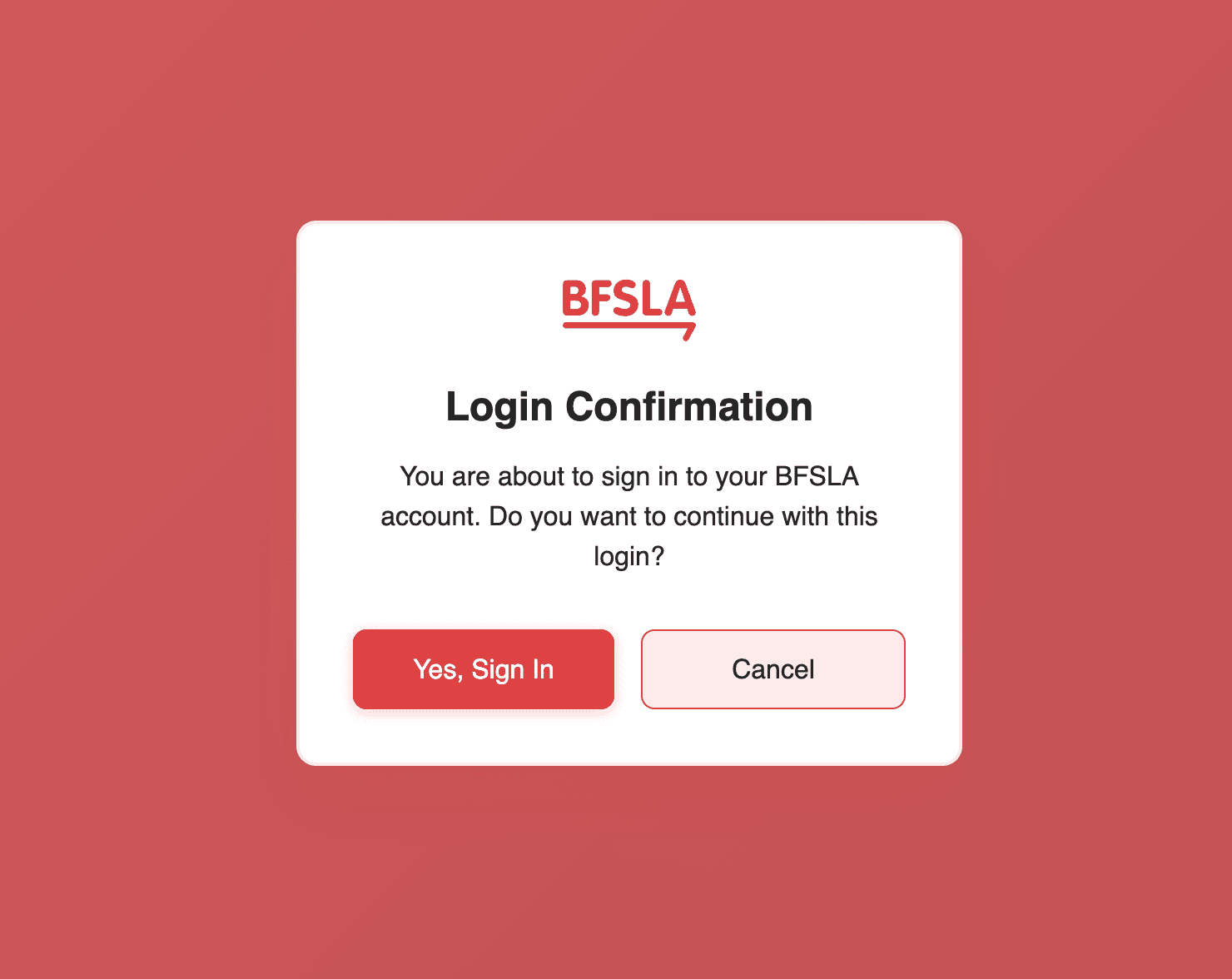
Figure 6: Login confirmation dialog
Step 6. Successful Login
If everything is correct, you will see a confirmation screen after clicking “Yes, Sign In.” You will then be redirected to the page you were trying to access.
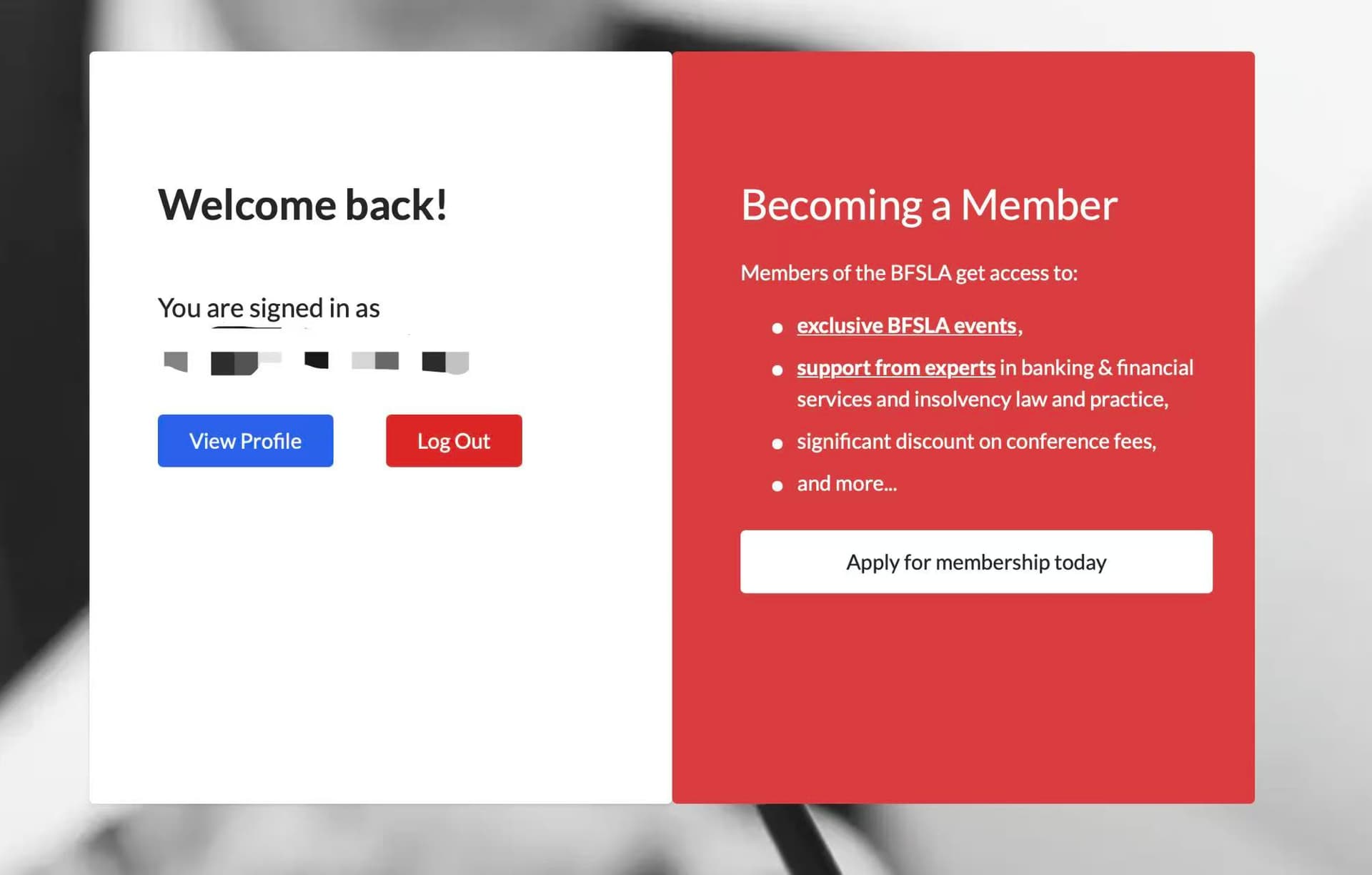
Figure 7: Successful login welcome screen
If you experience any issues during the login process, please ensure you are using the same browser and device, and that the magic link has not expired. For further assistance, contact our support team.