

Organisation Instructions
Instructions on the Organisation Function
This guide will walk you through the complete process of setting up and managing your organisation account, from initial registration to member management.
Section 1. Setting up a Corporate Account
To create an organisation leader account, please begin by applying for organisation membership.
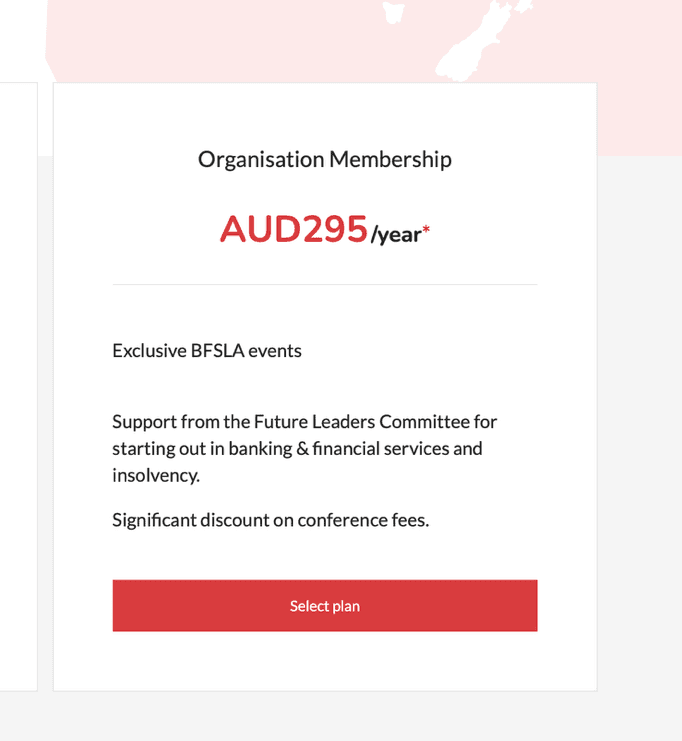
Figure 1: Organisation membership application form
When completing the company details, please ensure that your the businessNumber (ABN/NZBN) of your organisation has not been registered. Please also select your organisation capacity. The minimum capacity is 5. When adding the capacity, every seat is 60 AUD/NZD per year, and every 5 seat will have a discount of 5 AUD/NZD per year. The final fee of the organisation membership is calculated based on the capacity you choose.
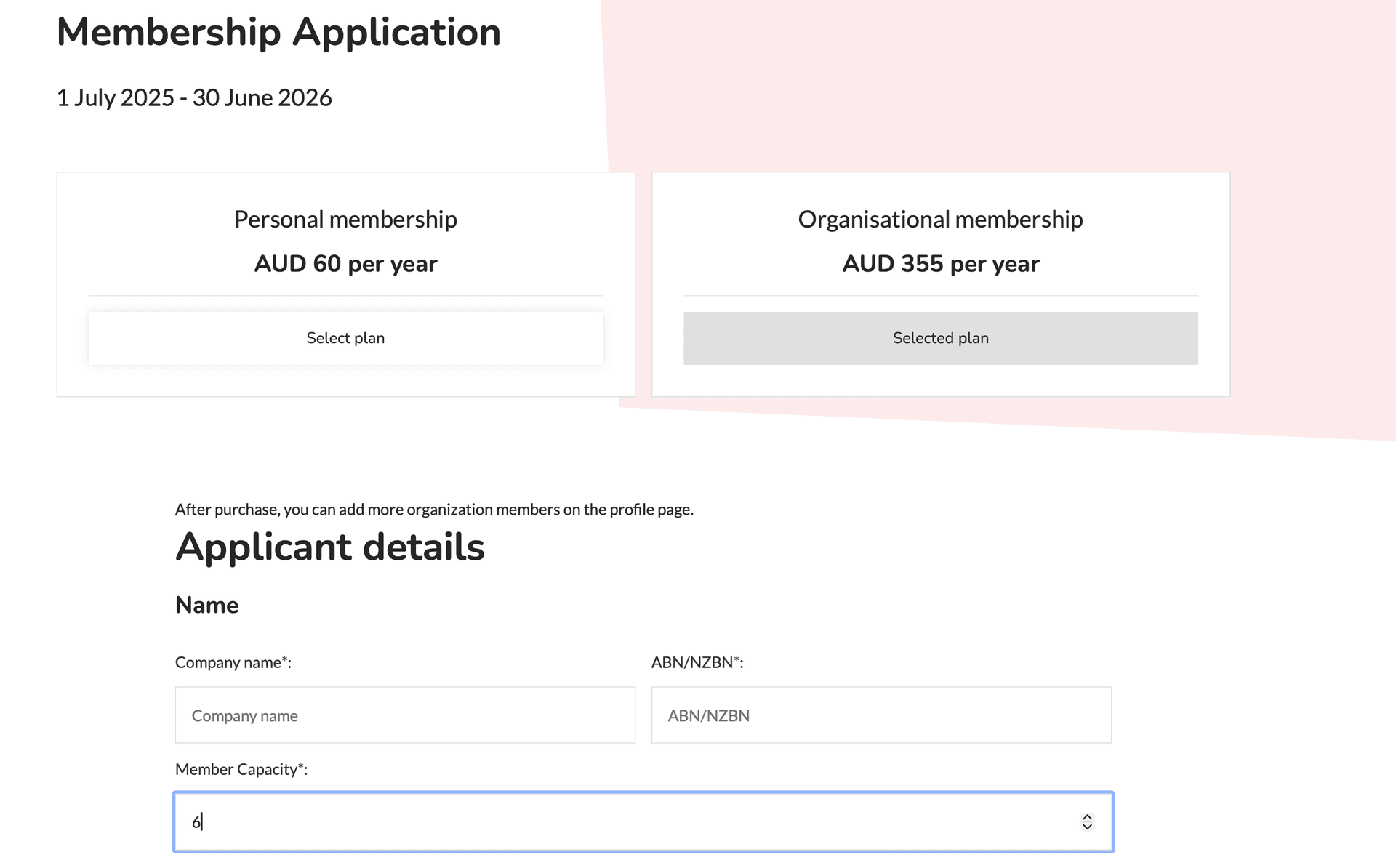
Figure 2: Company details registration form
If your organisation’s ABN/NZBN number has already been registered, the following error message will be displayed. Please contact your organisation’s administrator to add you as an organisation member. If you have any other questions, please contact us.
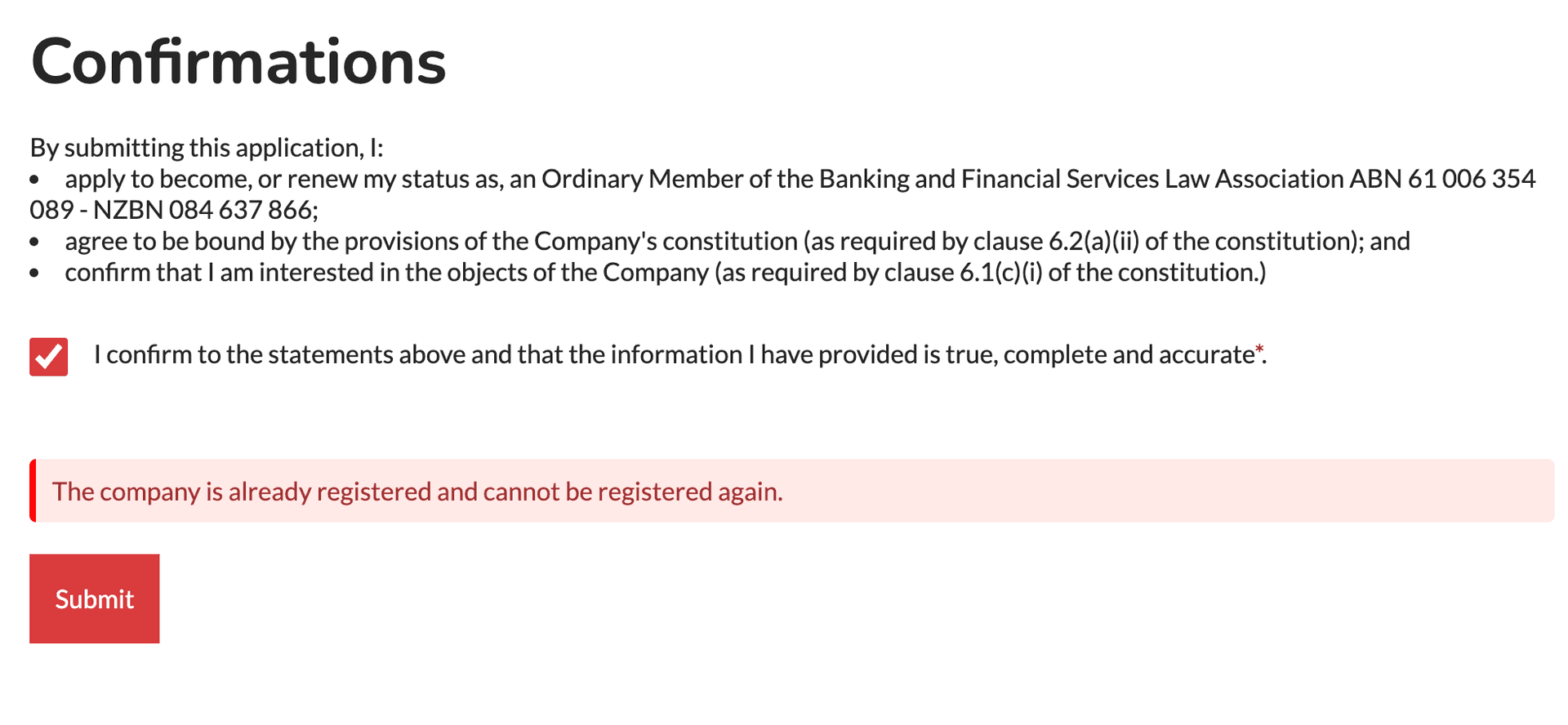
Figure 3: ABN/NZBN already registered error message
Section 2. Admin page for the Organisation
Each organisation must have at least one Organisation Owner, who is able to add additional members. By default, an organisation may include up to five members in total, including the Owner.
If you are an Owner and would like to add members, please go to your Profile by clicking the “My Profile” button located in the header or footer after logging in. On the profile page, you will see the “Organisation Admin” button, which is available to Owners.
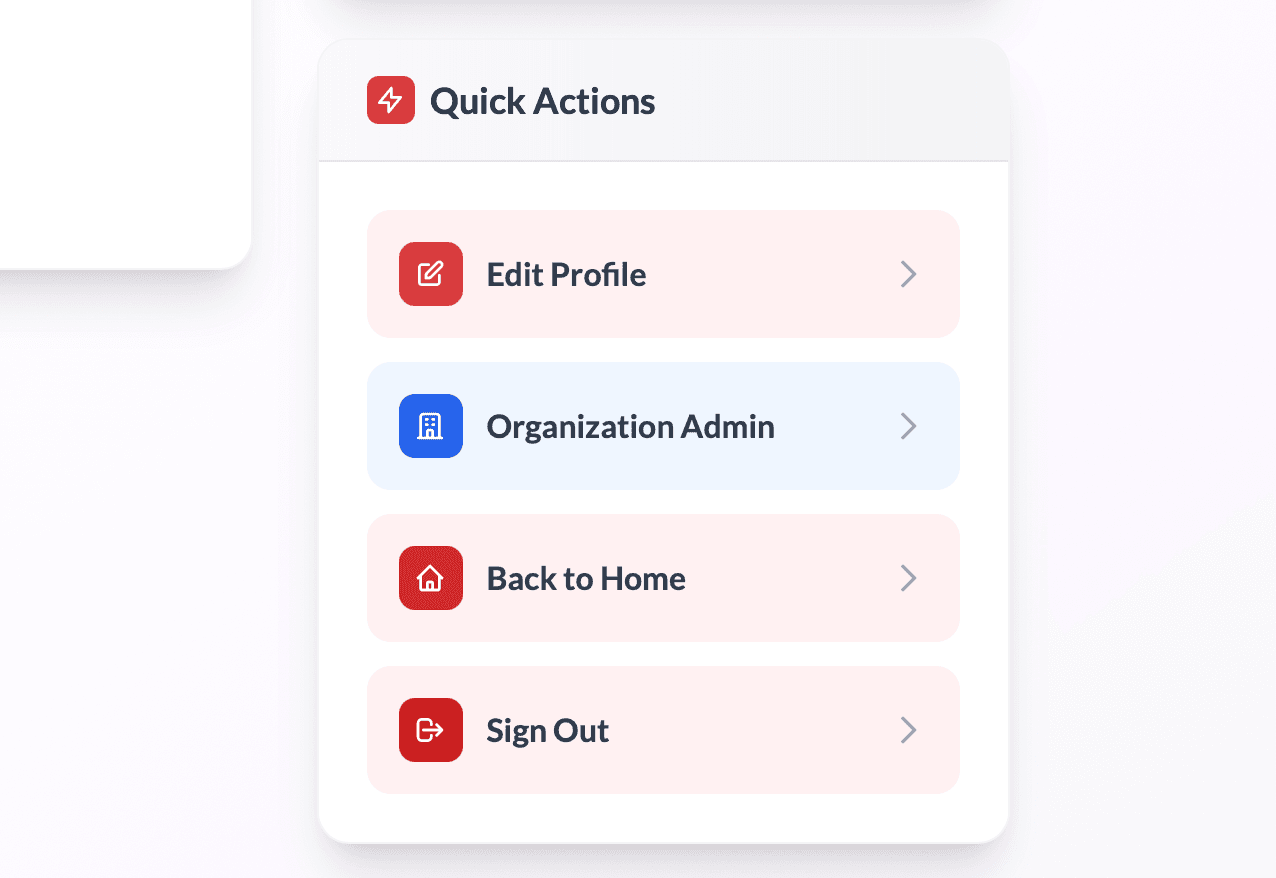
Figure 4: Profile page with Organisation Admin access
Click on “Organisation Admin,” and the following options will appear. At the top right, you will see the number of individuals in your organisation along with the capacity.
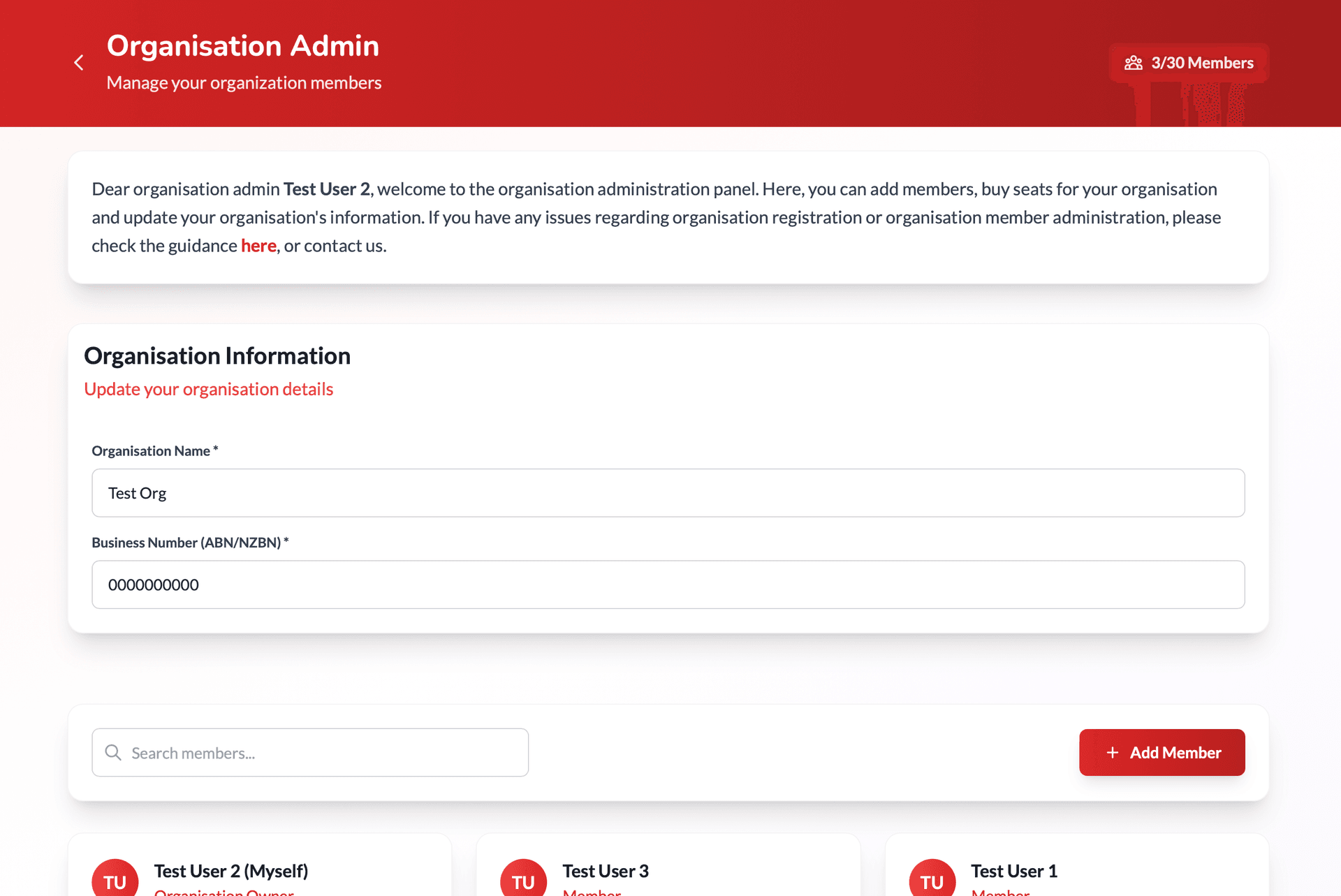
Figure 5: Organisation Admin dashboard with member management
Section 3. Update the Organisation Information
You can change the organisation’s information by updating the information form.
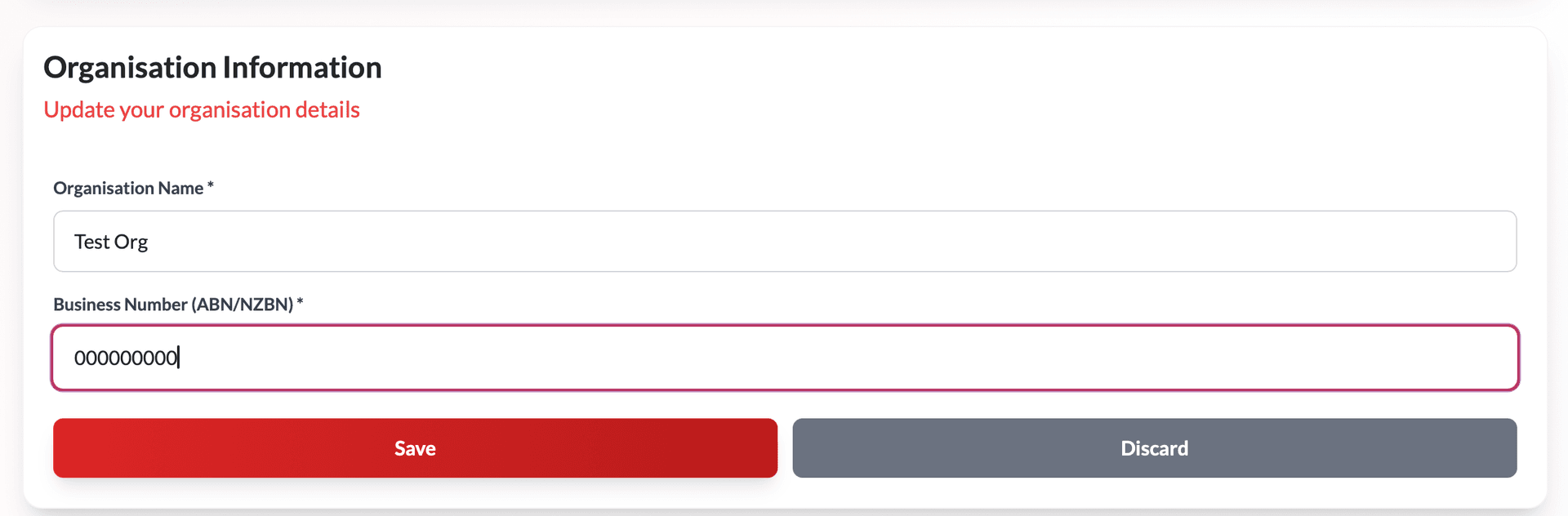
Figure 6: Organisation information update form
Before you click ‘Save’, please ensure the business number is correct. If you see the following warning that your business number has been registered on the website, please verify that the business number you entered is correct. If you suspect that someone has used your business number, contact us.
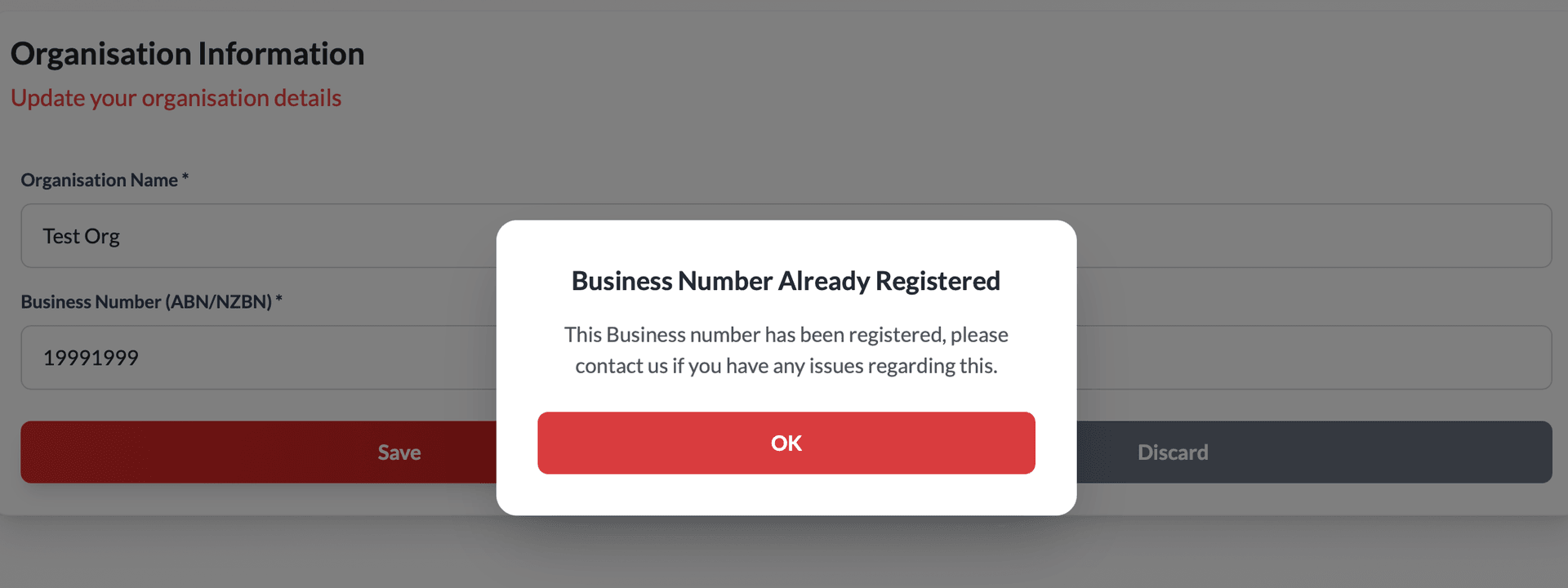
Figure 7: Business number registration warning
Section 4. Add or Remove an Member from the Organisation
If your organisation has not yet reached its member capacity, you may click “Add Member” to include a new member.
When adding a member, you may enter their name, email, and position. You can also remove a member at any time by clicking the “Delete” button. Please note that you may delete any member except yourself.
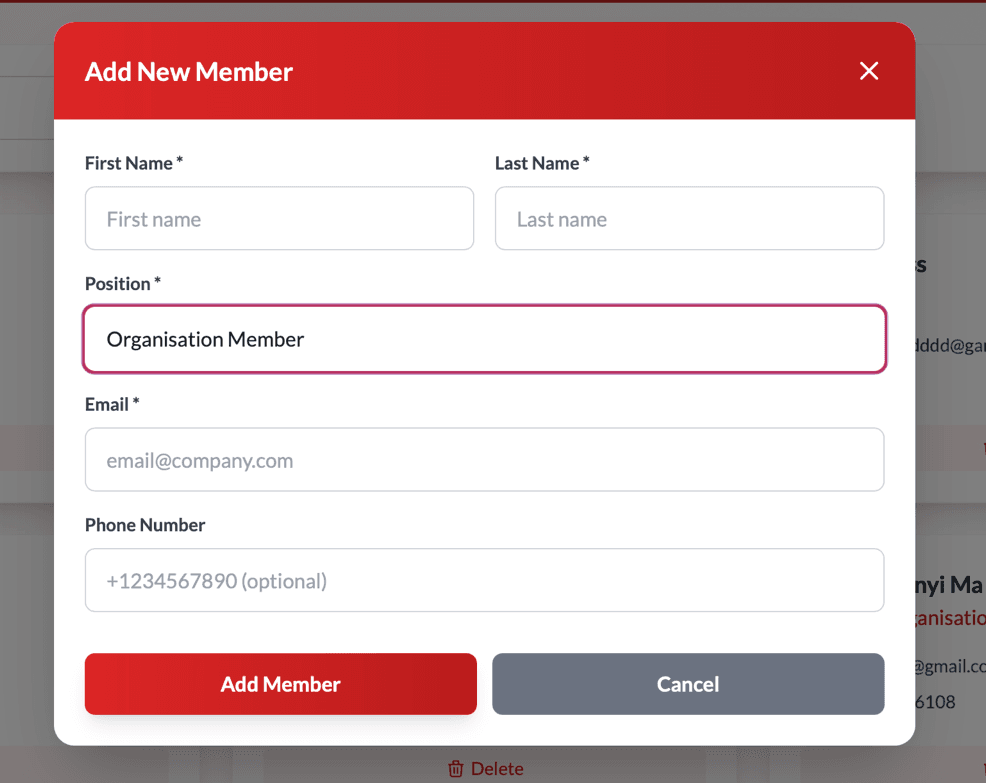
Figure 8: Add New Member form
When adding a member, you can set the name, email and position. You can also delete the member by clicking the delete button. You can delete anybody else other than yourself.
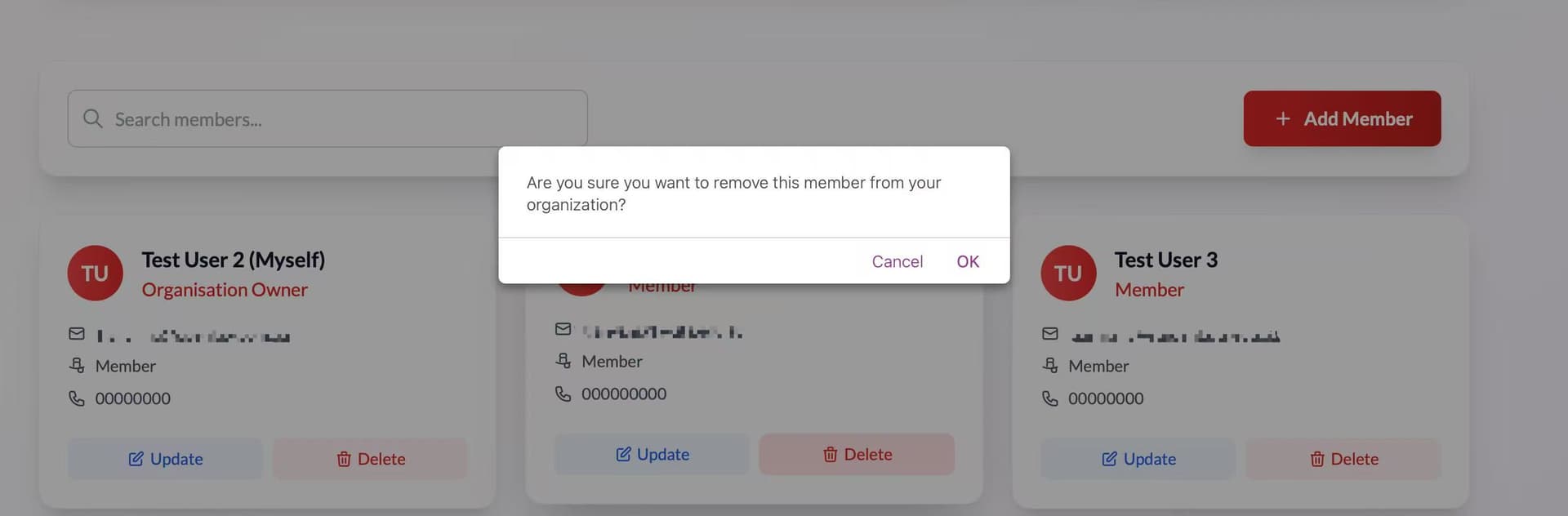
Figure 9: Member deletion confirmation
Section 5. Update the Information of Organisation Members
You can update the organisation members’ information. Click the update button for a single member to update their information.
Please note that some of their information cannot be edited by the Owner or Admin. Each individual must log in to their own account and use the “Edit Profile” option to update more deailed information other than email, name, position and phone number.
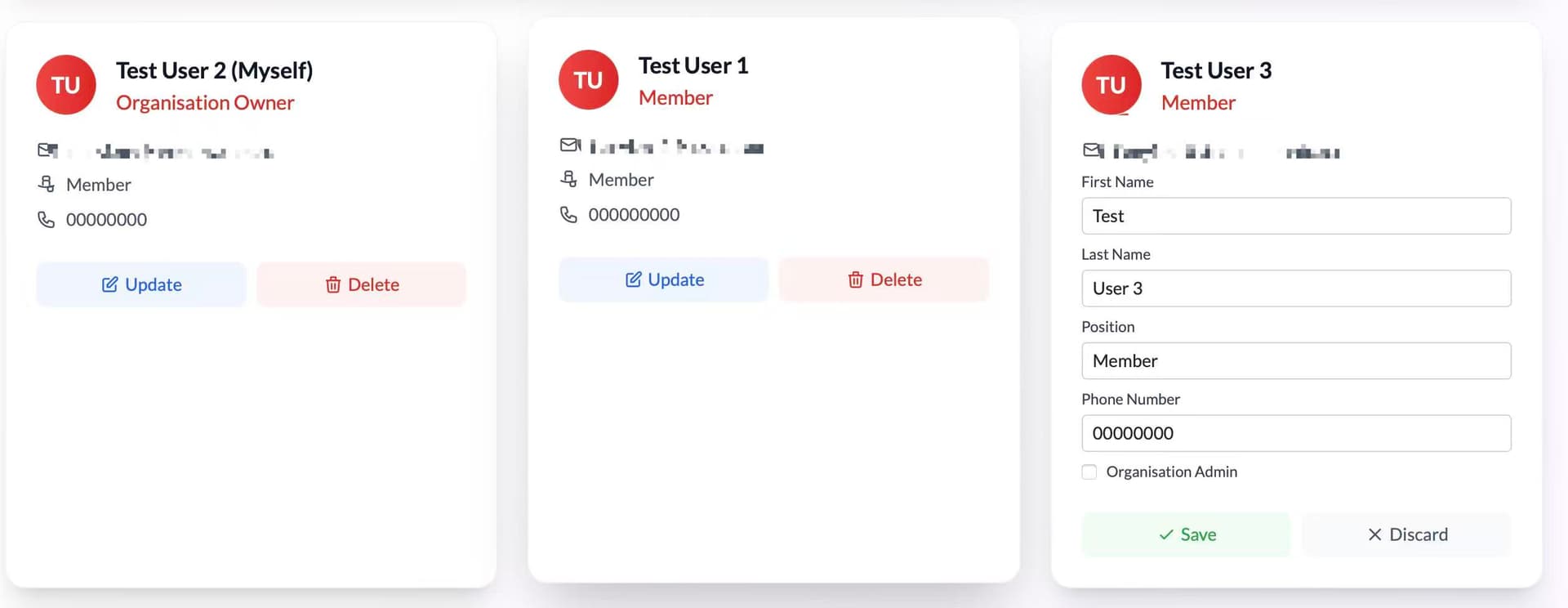
Figure 10: Member information update interface
You can also grant a member organisation admin permission or remove their admin permission, just tick or untick the “Company Owner”.
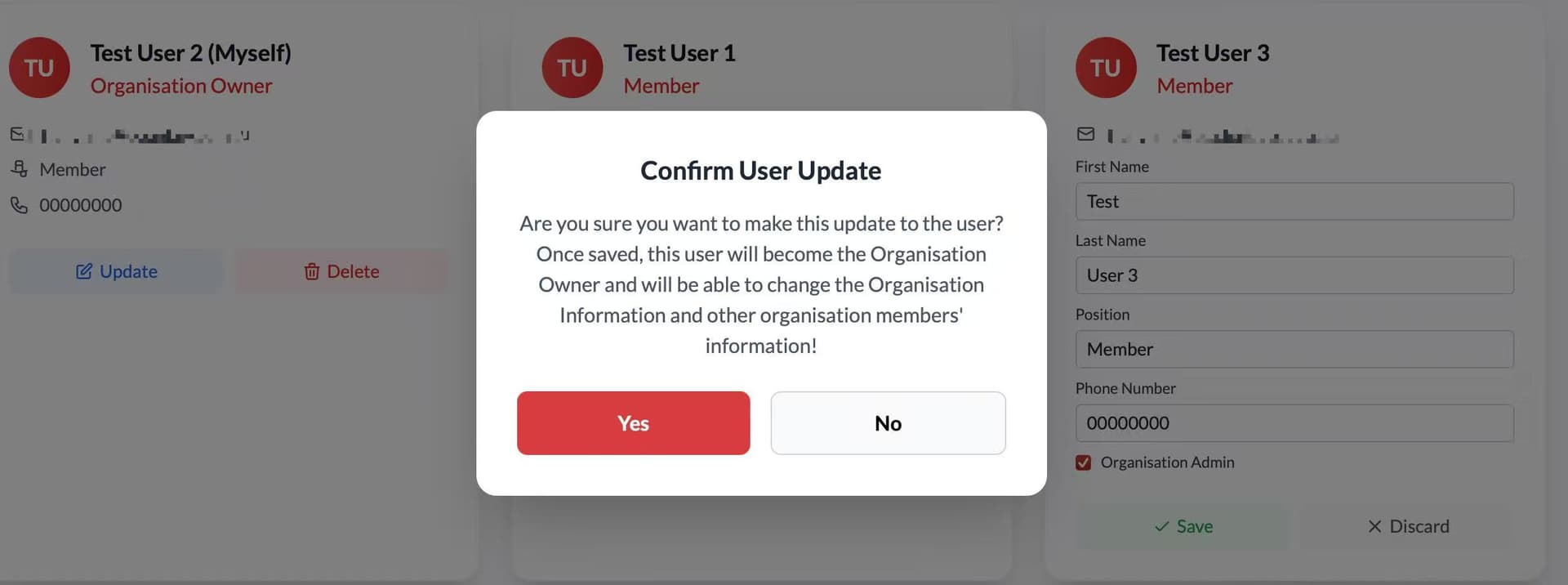
Figure 11: Company Owner permission settings
Section 6. Increase the Membership Capacity of the Corporation
If the number of members reaches capacity, you can click “Buy More Seats” to buy capacity for this organisation.
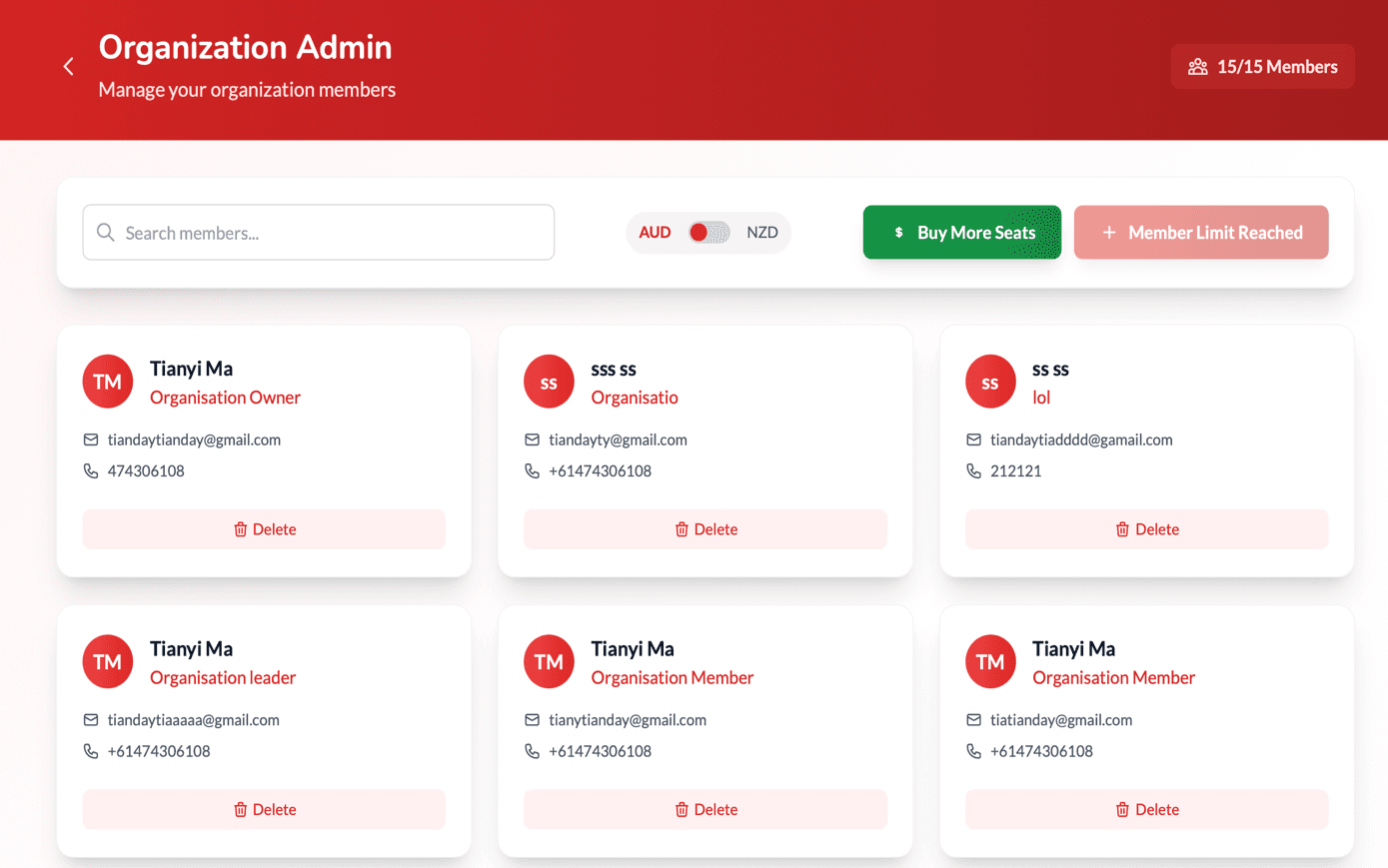
Figure 12: Member limit reached notification
When buying more seats, the final fee of the organisation membership is calculated based on the capacity you choose. Every seat is 60 AUD/NZD per year, and every 5 seat will have a discount of 5 AUD/NZD per year. The discount will be calculated based on the total capacity.
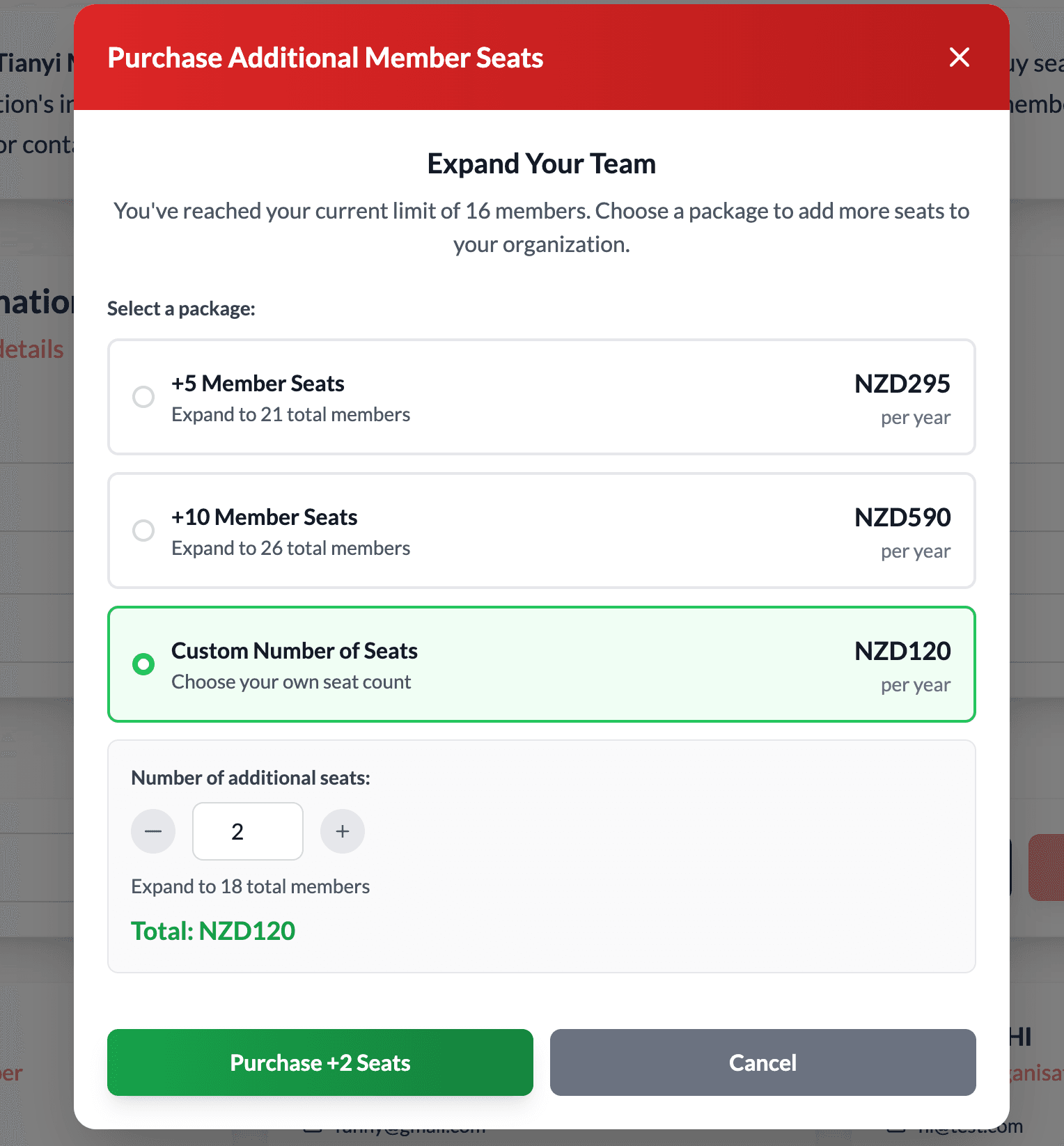
Figure 13: Purchase additional seats options
Section 7. Other Requirements
If you have the following requirements, please contact us:
- Check if your business number has been registered.
- Would like to decrease the capacity of an organisation.
For assistance with these requirements, please reach out to our support team through the contact form on our website or email us directly.